


Bambu Lab Filament Track Switch
Description
Description
Bambu Lab Filament Track Switch
- Eliminate Manual Filament Re-grouping
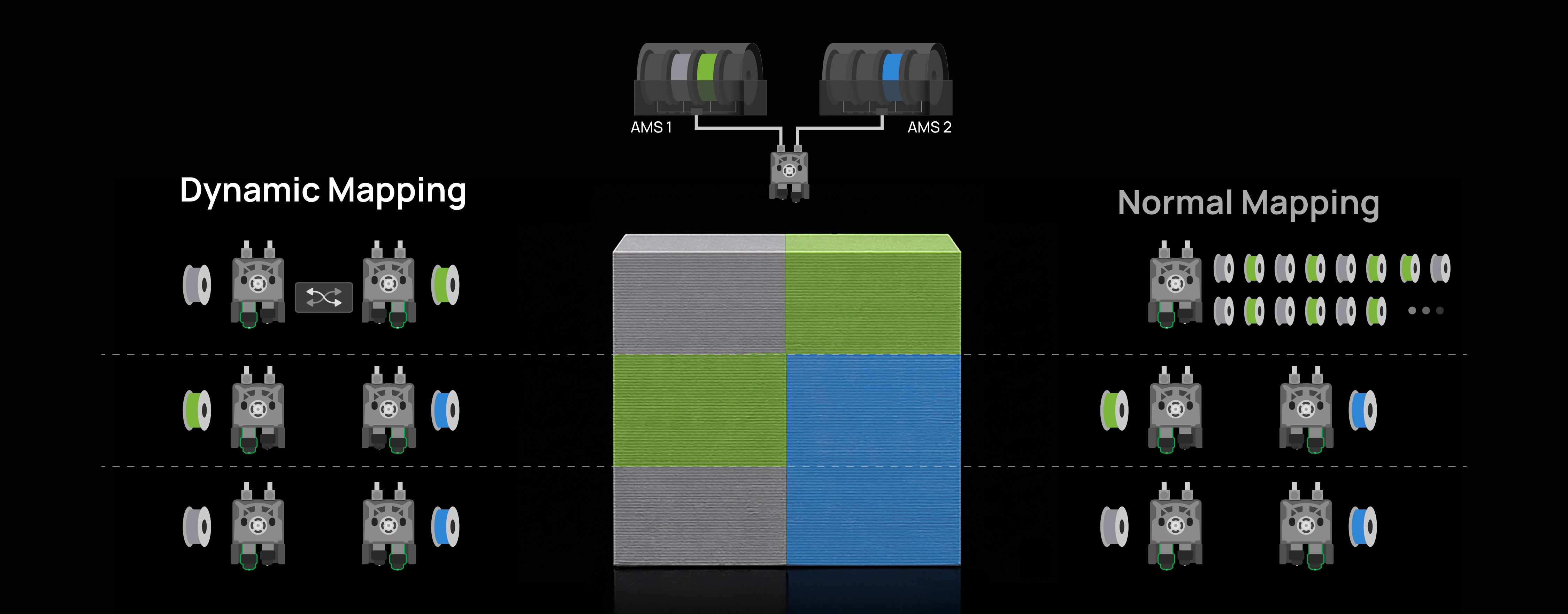
- Dynamic Mapping for Peak Efficiency
- Currently, the Filament Track Switch is only compatible with the X2D. Support for the H2C is expected within Q2 2026, while support for the H2D is expected in the second half of 2026.
- After installing the Filament Track Switch, the number of AMS units that can be connected depends on the printer's supported AMS expansion limit. Please refer to the official specifications of the corresponding printer model for details.
- For dual-nozzle printers (such as the X2D), a single AMS can still support dual-nozzle printing and enable filament switching between the left and right hotends when used with the Filament Track Switch. However, when only one AMS is connected, the left and right hotends support alternate feeding only, not simultaneous feeding. During switching, the AMS must first unload the filament and then reload it.
Eliminate Manual Filament Re-Grouping
Dual-extrusion 3D printers significantly accelerate multi-color printing by reducing the flushing time required by single-extrusion machines. Traditionally, ensuring filaments reached the correct nozzle required manually swapping spools between AMS units. With the Filament Track Switch, those days are over. It intelligently routes any filament from your AMS units to whichever nozzle the slicer assigns, giving you total hardware flexibility and faster prints.
Dynamic Mapping for Peak Efficiency
The filament track switch unbinds the AMS from specific nozzles, allowing any filament to feed into any nozzle regardless of configuration. This enables dynamic filament mapping, permitting mid-print color reassignments that significantly boost multi-color efficiency.
Please refer to the installation guide for the Filament Track Switch available on Bambu Lab Wiki. For a visual walkthrough, we also recommend watching the step-by-step installation video.
In the Box
| Item | Quantity |
| Filament Track Switch |
1 |
| 6-pin Cable |
1 |
| PTFE Tube (700 mm) |
2 |
| PTFE Tube (400 mm) |
2 |
| ST3x10 Screws |
4 |
| BT2x8 Screws |
2 |
Product Specifications
| Materials | Plastic, Metal | Packaging Size | 150*110*50mm |
| Color | Black | Packaging Weight | 60 g |
FAQ
1. When the filament track switch is installed on the X2D printer, how many AMS units can be connected at most?
A: The number of AMS units the printer can connect to is independent of whether the filament track switch is installed, so the X2D supports up to 4 AMS 2 Pro and 8 AMS HT units simultaneously—12 units with 24 slots in total—linked via the 4-in-1 PTFE adapter.
2. Can the 4-in-1 PTFE adapter be used when only two AMS units are connected?
A: Using the 4-in-1 PTFE adapter with just two AMS units is strongly discouraged; the extra resistance during loading and unloading can compromise print reliability.
3. Can the filament track switch be connected to an external spool?
A: No. When using an external spool, it will permanently occupy one extruder channel, making the filament track switch unable to dynamically map filament from the AMS to the two extruders. Therefore, if you need to print with an external spool, you need to remove the filament track switch.
4. Are there filament restrictions when printing with the filament track switch?
A: Certain filaments—such as PLA-CF, PLA Glow, and PLA Silk—are more sensitive to feed resistance and may fail to load or unload. Avoid using these filaments through the switch. If problems occur and printing must continue, try:
- Manually moving the problematic filament to another AMS slot;
- Using the officially recommended PTFE tube length;
- Arranging the AMS units as advised in the official guidelines.
If issues persist, disable the filament track switch for the current print job.
5. What should I do if the filament track switch is clogged?
A: If the filament track switch is clogged, please refer to filament track switch disassembly and troubleshooting guide to clear the clog.
6. What should I do if the filament gets stuck at the filament track switch outlet?
A: If the filament gets stuck at the filament track switch outlet, you can try the following solutions:
- Reconnect the PTFE tube between the filament track switch and the filament buffer.
- Install the pneumatic connector locking tab on the filament track switch outlet.
- Replace the PTFE tube between the filament track switch and the filament buffer.
7. Can the printer perform calibration when using the filament track switch?
A: Currently, after installing the filament track switch on the X2D, high-precision nozzle offset calibration cannot be performed. To run this calibration, you must first remove the switch and restore the printer to its state without the switch. A future firmware update will resolve this limitation.
